分类目录归档:技术

Ruby 多版本管理工具 rbenv

rbenv (Simple Ruby Version Management) 允许您在 Ruby 的多个版本之间轻松切换。它简单、不引人注目,并遵循 UNIX 的传统,即只做一件事的单一用途工具。

安装方法

安装 rbenv

# Archlinux
sudo pacman -S rbenv
# macOS
brew install rbenv
# Debian/Ubuntu
sudo apt install rbenv
# Fedora/RHEL
sudo dnf install rbenv

安装 ruby-build

使用 rbenv 安装 ruby 版本需要用到 install 命令,但是该 rbenv install 命令不是开箱即用的 rbenv 提供的,而是由 ruby-build 插件提供的,下面一同安装:

# Archlinux
sudo pacman -S ruby-build
# macOS
brew install ruby-build

使用方法

# 首先初始化
rbenv init

# 查看可安装版本
rbenv install -l # list latest stable versions
rbenv install -L # list all local versions

# 安装某个版本
rbenv install 3.1.2

# 使用某个版本
rbenv global 3.1.2 # set the default Ruby version for this machine
rbenv local 3.1.2  # set the Ruby version for this directory

References

使用 GCOP AI 助力提升 git commit 效率

最近在 阮老师博客 看到一款这个 GCOP,一个基于 LLM 的 Git 提交消息生成和 Git 工作流程优化工具,试用了一下确实不错。接入 LLM 即可自动分析 git 修改生成 commit 消息,比我之前做的 git-commit 生成器好用多了。

以下是一些简单介绍:

简介

GCOP (Git Copilot) 是一个 Git 智能助手,它使用 AI 来自动生成 Git 提交消息,帮助开发者优化 Git 工作流程。

主要功能

  1. 智能提交消息:自动分析代码变更,生成高质量、定制化的提交消息,并提供多种细粒度配置,确保团队提交标准的一致性
  2. 灵活的 AI 集成:支持配置各种 LLM 模型(如 OpenAI GPT、Claude、Deepseek 等)
  3. 简化的 Git 命令:内置 20+ 直观的 Git 快捷操作和命令,提供直观的命令别名,如 git c 用于 AI 辅助提交,优化 Git 工作流程
  4. 无缝工作流集成:增强现有 Git 工作流程,无需改变使用习惯

优点

🎨 高度可定制化体验

  • 提供全局配置和项目级配置,配置项目特定设置,确保团队标准的一致性
  • 设计专属提交模板以匹配项目需求
  • 通过自定义提示优化 git message 的风格

⚡ 流畅的开发者体验

  • 内置 20+ 直观的 Git 快捷操作和命令,智能别名让复杂的 Git 操作轻而易举
  • 支持各种 LLM 模型(OpenAI、Anthropic、Deepseek 等)
  • 零配置集成至现有的 Git 工作流

📚 智能学习能力

  • 自动学习您的代码库提交历史
  • 随时间适应团队的提交习惯
  • 通过持续学习提升信息质量

项目完全开源,使用 MIT 协议,基于 Python 开发。

Github: https://github.com/Undertone0809/gcop
官网: https://gcop.zeeland.top/

使用方法

安装配置参考官网 Quick Start Guide 即可,mac 下可以结合 conda 安装,之后大概按照这样配置:

model:
  model_name: openai/gpt-4o-mini
  api_key: sk-xxxx
  api_base: https://api.xxx.io/v1

即可使用。

效果

(base) songtianlun@songtianlundeMacBook-Air sample_rails_app % git ac
[Code diff] 
diff --git a/.gitignore b/.gitignore
index afd85fd..daa7023 100644
--- a/.gitignore
+++ b/.gitignore
@@ -37,3 +37,5 @@
 !/app/assets/builds/.keep

 /node_modules
+
+.idea
[On Ready] Generating commit message...
[Thought] The changes involve the removal of several .idea configuration files and the 
addition of .idea to the .gitignore file. This indicates a cleanup of IDE-specific files 
that are not necessary for version control, which can help reduce clutter in the repository.
[Generated commit message]
chore: remove IDE configuration files

- Deleted .idea/misc.xml, .idea/modules.xml, and .idea/sample_rails_app.iml files
- Added .idea to .gitignore to prevent future IDE files from being tracked

This commit cleans up the repository by removing IDE-specific configuration files that are 
not needed for the project. It also ensures that any future IDE files will be ignored, 
keeping the repository clean and focused on the actual project code.
? Do you want to commit the changes with this message? yes
[main d86005c] chore: remove IDE configuration files
 6 files changed, 2 insertions(+), 373 deletions(-)
 delete mode 100644 .idea/.gitignore
 delete mode 100644 .idea/misc.xml
 delete mode 100644 .idea/modules.xml
 delete mode 100644 .idea/sample_rails_app.iml
 delete mode 100644 .idea/vcs.xml
(base) songtianlun@songtianlundeMacBook-Air sample_rails_app % git push

常用命令

$ git ghelp                
/opt/homebrew/Caskroom/miniconda/base/lib/python3.12/site-packages/pydantic/_internal/_config.py:345: UserWarning: Valid config keys have changed in V2:
* 'fields' has been removed
  warnings.warn(message, UserWarning)

gcop is your local git command copilot
Version: 1.7.3
GitHub: https://github.com/Undertone0809/gcop

Usage: gcop [OPTIONS] COMMAND

Commands:
  git p          Push the changes to the remote repository
  git pf         Push the changes to the remote repository with force
  git undo       Undo the last commit but keep the file changes
  git ghelp      Add command into git config
  git gconfig    Open the config file in the default editor
  git gcommit    Generate a git commit message based on the staged changes and commit the 
changes
  git c          The same as `git gcommit` command
  git ac         The same as `git add . && git gcommit` command
  git acp        The same as `git add . && git gcommit && git push` command
  git cp         The same as `git gcommit && git push` command
  git amend      Amend the last commit, allowing you to modify the commit message or add 
changes to the previous commit
  git info       Display basic information about the current git repository

改好代码之后 git ac && git push 两行命令搞定标准格式提交,很方便。

References

Linux buffer-cache 占用过高性能调整

什么是 buff/cache?

在 Linux 2.4 的内存管理中,buffer 指 Linux 内存的:Buffer cache。cache 指 Linux 内存中的:Page cache。一般呢,是这么解释两者的。

  • A buffer is someting that has yet to be ‘written’ to disk.
  • A cache is someting that has been ‘read’ from the disk and stored for later use.

翻译过来就是说:

  1. buffer (buff) 是用来缓存尚未 “写入” 磁盘的内容。
  2. cache 是用来缓存从磁盘 “读取” 出来的东西。

所以 buffer 被用来当成对 io 设备写的缓存。而 cache 被用来当作对 io 设备的读缓存。这里的 io 设备,主要指的是块设备文件和文件系统上的普通文件。

但是在 Linux 2.6 以后,它们的意义不一样了。

在 Linux 2.6 之后 Linux 将他们统一合并到了 Page cache 作为文件层的缓存。而 buffer 则被用作 block 层的缓存。
block 层的缓存是什么意思呢,你可以认为一个 buffer 是一个 physical disk block 在内存的代表,用来将内存中的 pages 映射为 disk blocks,这部分被使用的内存被叫做 buffer。

buffer 里面的 pages,指的是 Page cache 中的 pages,所以,buffer 也可以被认为 Page cache 的一部分。

或者简单来说,buffer 负责裸设备相关的缓存,cache 负责文件系统的缓存。

Buffer 的具体职责

在当前的系统实现里,buffer 主要是设计用来在系统对块设备进行读写时作为缓存来使用。这意味着对块的操作会使用 buffer 进行缓存,比如我们在格式化文件系统的时候。

但是一般情况下两个缓存系统是一起配合使用的,比如当我们对一个文件进行写操作的时候,cache 的内容会被改变,而 buffer 则用来将 cache 的 page 标记为不同的缓冲区,并记录是哪一个缓冲区被修改了。

这样,内核在后续执行脏数据的回写(writeback)时,就不用将整个 page 写回,而只需要写回修改的部分即可。

Cache 的具体职责

cache 主要用来作为文件系统上的文件数据的缓存来用,当进程对文件有 read/write 操作的时候。包括将文件映射到内存的系统调用 mmap,就会用到 cache。

因为 cache 被作为文件类型的缓存来用,所以事实上也负责了大部分的块设备文件的缓存工作。

怎么回收 buff/cache?

Linux 内核会在内存将要耗尽的时候,自动触发内存回收的工作,以便释放出内存给急需内存的进程使用。

但是这种回收的工作也并不是没有成本。

理解 cache 是干什么的就知道,cache 中存在着一部分 write 操作的数据。所以必须保证 cache 中的数据跟对应文件中的数据一致,才能对 cache 进行释放。

于是伴随着 cache 清除的行为的,一般都是系统 IO 飙高。这是因为内核要将 cache 中缓存的 write 数据进行回写。

我们可以使用下面这个文件来人工触发缓存清除的操作,Linux 提供了三种清空方式:

  1. echo 1 > /proc/sys/vm/drop_caches # 仅清除页面缓存
  2. echo 2 > /proc/sys/vm/drop_caches # 清除目录项和 inode
  3. echo 3 > /proc/sys/vm/drop_caches # 清除页面缓存、目录项以及 inode

但是这种放时只能在执行的当时起作用,过一段时间之后又会发现内存被占满,怎么办呢?

实际上内核提供了 vm.vfs_cache_pressure 参数用来控制缓冲区的回收频率,我们可以调整它。

这个参数是用来控制内核回收 VFS 缓存的频率。修改这个值会提高或者降低回收 VFS 缓存的频率。值可以设置为 0-200 中的任意值。越大回收频率越快,可以把 vm.vfs_cache_pressure 赋值为 200 来获得最快的回收频率。这个值默认值一般为 100。

另外也可以使用 slabtop 分析内存使用情况。一般情况下,dentry 和 *_inode_cache 值越高回收的效果越好。

为什么是 dentry 和 *_inode_cache 呢,这是因为当读写文件时内核会为该文件对象建立一个 dentry,并将其缓存起来,方便下一次读写时直接从内存中取出提高效率。

一些措施

内核参数

可以通过配置 vm.vfs_cache_pressure 参数,控制系统回收 directory entries 和 inode 缓存的倾向程度

Linux Kernel 文档描述如下:

此百分比值控制内核回收用于缓存 directory 和 inode 对象的内存的趋势。 在默认值 vfs_cache_pressure=100 时,内核将尝试以 pagecache 和 swapcache 回收的“公平”速率回收 dentry 和 inode。减小 vfs_cache_pressure 会导致内核更倾向于保留 dentry 和 inode 缓存。当 vfs_cache_pressure=0 时,由于内存压力,内核永远不会回收 dentry 和 inode,这很容易导致内存不足的情况。将 vfs_cache_pressure 增加到 100 以上会导致内核更喜欢回收 dentry 和 inode。 将 vfs_cache_pressure 显著增加到 100 以上可能会对性能产生负面影响。回收代码需要使用各种锁来查找可释放的目录和 inode 对象。当 vfs_cache_pressure=1000 时,它将查找比可用对象多 10 倍的可用对象。

可尝试将该值调整为 200 使得比默认值更积极地回收缓存,要持久化配置 vm.vfs_cache_pressure 为 200,你可以通过以下几种方法:

  1. 通过 /etc/sysctl.conf 文件(推荐方法):
# 使用文本编辑器打开 /etc/sysctl.conf
sudo vim /etc/sysctl.conf

# 添加或修改以下行
vm.vfs_cache_pressure = 200

# 使配置生效
sudo sysctl -p
  1. 通过创建 /etc/sysctl.d/ 目录下的配置文件:
# 创建新的配置文件
sudo vim /etc/sysctl.d/99-vfs-cache-pressure.conf

# 添加以下行
vm.vfs_cache_pressure = 200

# 使配置生效
sudo sysctl --system

手动清理

$ sync
$ echo 1 > /proc/sys/vm/drop_caches
$ echo 2 > /proc/sys/vm/drop_caches
$ echo 3 > /proc/sys/vm/drop_caches

自动定时清理

不推荐这么做

1、创建脚本cleanCache.sh

#!/bin/bash#每两小时清除一次缓存
echo "开始清除缓存"
sync;sync;sync #写入硬盘,防止数据丢失
sleep 10#延迟10秒
echo 1 > /proc/sys/vm/drop_caches
echo 2 > /proc/sys/vm/drop_caches
echo 3 > /proc/sys/vm/drop_caches

2、创建定时任务

crontab -e #弹出配置文件

3、添加定时任务执行频率

#分  时  日  月  周  命令
0 */2 * * * /usr/local/bin/cleanCache.sh

4、设置crond启动以及开机自启

systemctl start crond.service
systemctl enable crond.service

5、查看定时任务是否被执行

cat /var/log/cron | grep cleanCache

References

VirtualBox VERR_NO_LOW_MEMORY 解决

Archlinux 下内存有很多,但 VB 报错内存不足 VM 无法启动,free 可以看到内存大部分被 buffer 占用。

free -h
              total        used        free      shared  buff/cache   available  
内存:          30Gi        13Gi        1Gi       2.3Gi       18.7Gi        17Gi  
交换:          31Gi       1.7Gi        30Gi

论坛找到一种强制驱逐 buffer 占用的方法:

echo 3 > /proc/sys/vm/drop_caches

执行后可正常启动。

References

GitHub 个人仓库批量备份到自建 Gitea

这是一个自动将 GitHub 仓库镜像到 Gitea 的 Shell 脚本。支持批量同步所有仓库,可以设置跳过特定仓库,并具有良好的错误处理机制。

由于 GitHub 仓库较多,因为各种原因担心数据风险和访问困难。代码托管在自建 gitea 虽然访问快,但是脱离了生态很难跟其他的 PaaS 平台对接。

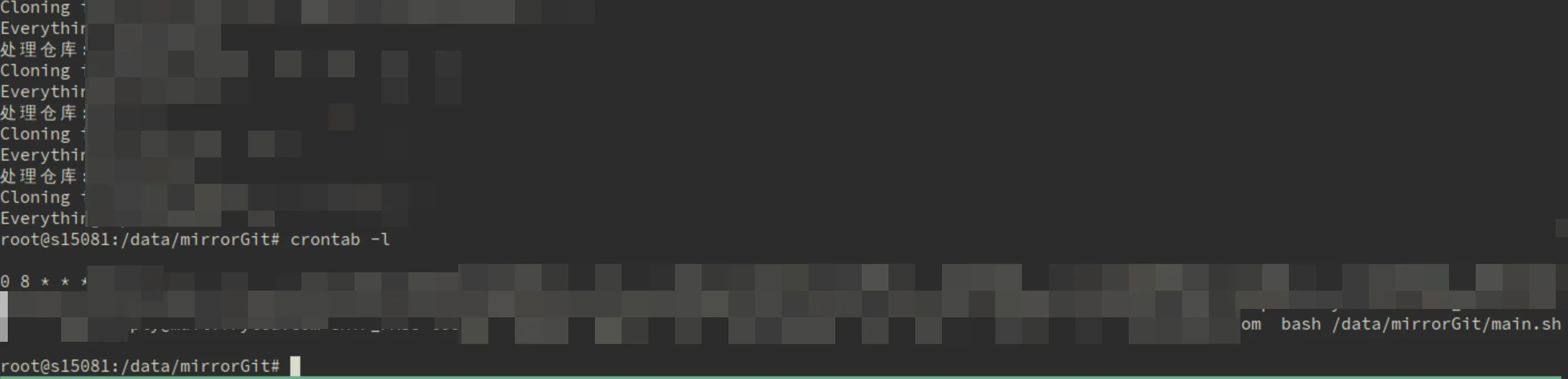
于是就编写了一套脚本,这套脚本从 Github api 获取 repo 清单,逐个 mirror 后推送到 gitea,最后收集同步报告发送邮件通知。结合 crontab 可实现自动化的 git repo 同步备份。

花了一点时间来写,干脆分享出来,可以i根据自己的需求定制。

邮件效果:

邮件截图

运行效果:

运行截图

支持 helm 的 harbor 版本

Harbor在v1.6版本开始支持Helm Chart仓库功能,- 从v2.6.0 开始弃用Chartmuseum,并在v2.8.0中开始删除。更多详情,请参阅讨论:https://github.com/goharbor/harbor/discussions/15057 从 v2.6.0 开始弃用 Notary(签名者和服务器),并在 v2.8.0 中开始删除。更多详情,请参阅讨论:https://github.com/goharbor/harbor/discussions/16612

安装Chartmuseum组件

修改配置文件

  在absolute_url​参使用ChartMuseum​组件时,客户端获取到的Chart的index.yaml​中包含的URL是否为绝对路径。在不配置该项时,ChartMuseum组件会返回相对路径,默认为disabled。

$ vim  harbor.yml
chart:
  # Change the value of absolute_url to enabled can enable absolute url in chart
  absolute_url: enabled

enabled表示使用绝对路径!

停止Harbor

$ docker-compose stop

注入配置

  执行./prepare将新的配置注入到各个组件中。

$  ./prepare

安装chartmuseum

  在执行install.sh安装时,通过–with-chartmuseum参数安装chart插件,安装完后会自动启动Harbor。

$ ./install.sh  --with-notary --with-trivy --with-chartmuseum
✔ ----Harbor has been installed and started successfully.----  #输出该信息则表示安装成功

查看组件服务状态

  通过docker-compose ps命令可以看到harbor的组件中多了个chartmuseum的容器。

$ docker-compose ps

验证是否安装了chartmuseum组件

登录Harbor UI管理界面:【项目】==>【library】==> 【Helm Charts】

References

#Harbor #Docker

配置 harbor 及 docker 等使用 https

默认情况下,Harbor不提供证书。可以在没有安全性的情况下部署Harbor,这样您就可以通过HTTP连接到它。但是,只有在没有连接到外部internet的空间隙测试或开发环境中才可以使用HTTP。在没有空间隙的环境中使用HTTP会暴露给中间人攻击。在生产环境中,始终使用HTTPS。如果启用带公证人的内容信任对所有images进行正确签名,则必须使用HTTPS。

要配置HTTPS,必须创建SSL证书。您可以使用由受信任的第三方CA签名的证书,也可以使用自签名证书。本节介绍如何使用OpenSSL创建CA,以及如何使用CA签署服务器证书和客户端证书。您可以使用其他CA提供程序,例如:Let’s Encrypt。

下面的过程假设您的Harbor注册表的主机名是 yourdomain.com,并且它的DNS记录指向运行Harbor的主机。

生成证书颁发机构的证书

在生产环境中,应该从CA获取证书。在测试或开发环境中,可以生成自己的CA。若要生成CA证书,请运行以下命令。

生成CA证书私钥。

openssl genrsa -out ca.key 4096

生成CA证书。 

调整 -subj选项中的值以反映您的组织。如果使用 FQDN 连接Harbor主机,则必须将其指定为 common name(CN)属性。

公用名(Common Name)一般来讲就是填写你将要申请SSL证书的域名 (domain)或子域名(sub domain)。

例1:打算为“chinassl.net”申请SSL证 书,那这个公用名(Common Name)就要填写“chinassl.net”,而不能填写 “www.chinassl.net”,因为在申请SSL证书时发证机构认为“www.yourdomain.com”和 “yourdomain.com”是不同的两个域名;

例2:如将要为bill.chinassl.net申请SSL证书,那么这里公用名(Common Name)就 要填写“bill.chinassl.net”而不能填写“chinassl.net”或“www.chinassl.net”
openssl req -x509 -new -nodes -sha512 -days 3650 \
 -subj "/C=CN/ST=Beijing/L=Beijing/O=example/OU=Personal/CN=yourdomain.com" \
 -key ca.key \
 -out ca.crt

生成服务器证书

证书通常包含.crt文件和.key文件,例如yourdomain.com.crt和yourdomain.com.key。

1、生成私钥。

openssl genrsa -out yourdomain.com.key 4096

 2、生成证书签名请求(CSR)。

调整-subj选项中的值以反映您的组织。如果使用FQDN连接Harbor主机,则必须将其指定为common name(CN)属性,并在key和CSR文件名中使用它。

openssl req -sha512 -new \
    -subj "/C=CN/ST=Beijing/L=Beijing/O=example/OU=Personal/CN=yourdomain.com" \
    -key yourdomain.com.key \
    -out yourdomain.com.csr

 3、生成 x509 v3 扩展文件。

无论您是使用 FQDN 还是使用IP地址连接到您的 Harbor 主机,都必须创建此文件,以便您可以为 Harbor 主机生成符合使用者替代名称(SAN)和 x509 v3 扩展要求的证书。替换DNS条目以反映您的域。

cat > v3.ext <<-EOF
authorityKeyIdentifier=keyid,issuer
basicConstraints=CA:FALSE
keyUsage = digitalSignature, nonRepudiation, keyEncipherment, dataEncipherment
extendedKeyUsage = serverAuth
subjectAltName = @alt_names

[alt_names]
DNS.1=yourdomain.com
DNS.2=yourdomain
DNS.3=hostname
IP.1 = 192.168.25.8
EOF

 4、使用 v3.ext 文件为您的港口主机生成证书。

将 CRS 和 CRT 文件名中的 yourdomain.com 替换为 Harbor 主机名。

openssl x509 -req -sha512 -days 3650 \
    -extfile v3.ext \
    -CA ca.crt -CAkey ca.key -CAcreateserial \
    -in yourdomain.com.csr \
    -out yourdomain.com.crt

向 Harbor 和 Docker 提供证书

生成 ca.crt 、 yourdomain.com.crt 和 yourdomain.com.key 文件后,必须将它们提供给Harbor和Docker,并重新配置Harbor以使用它们。

1、将服务器证书和密钥复制到Harbor主机上的 certcificates 文件夹中。

cp yourdomain.com.crt /data/cert/
cp yourdomain.com.key /data/cert/

 2、将 yourdomain.com.crt 转换为 yourdomain.com.cert ,供Docker使用。

Docker守护进程将 .crt 文件解释为 CA 证书,.cert文件解释为客户端证书。

openssl x509 -inform PEM -in yourdomain.com.crt -out yourdomain.com.cert

 3、将服务器证书、密钥和CA文件复制到港口主机上的Docker certificates文件夹中。必须先创建适当的文件夹。

cp yourdomain.com.cert /etc/docker/certs.d/yourdomain.com/
cp yourdomain.com.key /etc/docker/certs.d/yourdomain.com/
cp ca.crt /etc/docker/certs.d/yourdomain.com/

 如果将默认nginx端口443映射到其他端口,请创建文件夹 /etc/docker/certs.d/yourdomain.com:port或 /etc/docker/certs.d/harbor_IP:port。

4、重新启动Docker引擎。

systemctl restart docker

您可能还需要在操作系统级别信任证书。有关详细信息,请参阅harbor安装疑难解答。

下面的示例演示了使用自定义证书的配置。

/etc/docker/certs.d/
    └── yourdomain.com:port
       ├── yourdomain.com.cert  <-- Server certificate signed by CA
       ├── yourdomain.com.key   <-- Server key signed by CA
       └── ca.crt               <-- Certificate authority that signed the registry certificate

部署或重新配置harbor

如果尚未部署Harbor,请参阅配置Harbor YML文件,以获取有关如何通过在Harbor.YML中指定主机名和https属性来配置Harbor以使用证书的信息。

如果您已经使用HTTP部署了Harbor并希望将其重新配置为使用HTTPS,请执行以下步骤。

1、运行prepare脚本以启用HTTPS。

Harbor使用nginx实例作为所有服务的反向代理。使用prepare脚本将nginx配置为使用HTTPS。prepare 位于Harbor安装包中,与 install.sh 脚本处于同一级别。

./prepare

2、如果Harbor正在运行,请停止并删除现有实例。

images数据保留在文件系统中,因此不会丢失任何数据。

docker-compose down -v

3、Restart Harbor:

docker-compose up -d

验证HTTPS连接

在为Harbor设置HTTPS之后,您可以通过执行以下步骤来验证HTTPS连接。

1、打开浏览器并输入 https://yourdomain.com。它应该显示 harbor 界面。

某些浏览器可能会显示一条警告,指出证书颁发机构(CA)未知。使用非来自可信第三方 CA 的自签名 CA 时会发生这种情况。您可以将 CA 导入浏览器以删除警告。

2、在运行Docker守护进程的计算机上,检查 `文件,确保没有为https://yourdomain.com设置-unsecure-registry` 选项。

3、从Docker客户端登录到Harbor。

docker login yourdomain.com

 如果您已经将nginx 443端口映射到另一个端口,请在login命令中添加该端口。

docker login yourdomain.com:port

其他工具接入

Docker

cp yourdomain.com.cert /etc/docker/certs.d/yourdomain.com/
cp yourdomain.com.key /etc/docker/certs.d/yourdomain.com/
cp ca.crt /etc/docker/certs.d/yourdomain.com/

cp x.x.x.x:xxx.cert /etc/docker/certs.d/x.x.x.x:xxx/
cp x.x.x.x:xxx.key /etc/docker/certs.d/x.x.x.x:xxx/
cp ca.crt /etc/docker/certs.d/x.x.x.x:xxx/

Containerd

cp yourdomain.com.cert /etc/containerd/certs.d/yourdomain.com/
cp yourdomain.com.key /etc/containerd/certs.d/yourdomain.com/
cp ca.crt /etc/containerd/certs.d/yourdomain.com/

cp x.x.x.x:xxx.cert /etc/containerd/certs.d/x.x.x.x:xxx/
cp x.x.x.x:xxx.key /etc/containerd/certs.d/x.x.x.x:xxx/
cp ca.crt /etc/containerd/certs.d/x.x.x.x:xxx/

# example
mkdir -p /etc/containerd/certs.d/192.168.25.8:10443
cd /etc/containerd/certs.d/192.168.25.8:10443
wget http://192.168.25.9/raw/general/wz_harbor_ssl/192.168.25.8%3A10443.cert
wget http://192.168.25.9/raw/general/wz_harbor_ssl/192.168.25.8%3A10443.key
wget http://192.168.25.9/raw/general/wz_harbor_ssl/ca.crt
systemctl restart containerd.servic

skopeo

直接支持 /etc/docker/certs.d/ 目录下的证书。

helm

References

【Ai Agent】智能体实验之城市天气画报

计划进行一系列 AI Agent 实验,欢迎交流。

相关信息

  • 平台: 自建 Dify
  • 类型:AI Agent
  • 使用LLM:
    • gpt-4o-mini
    • Dall-e 3
  • 参考:扣子 的城市天气画报模板。

DSL

app:
  description: ''
  icon: 🤖
  icon_background: '#FFEAD5'
  mode: agent-chat
  name: 城市天气画报
  use_icon_as_answer_icon: false
kind: app
model_config:
  agent_mode:
    enabled: true
    max_iteration: 5
    prompt: null
    strategy: function_call
    tools:
    - enabled: true
      provider_id: gaode
      provider_name: gaode
      provider_type: builtin
      tool_label: 天气预报
      tool_name: gaode_weather
      tool_parameters:
        city: ''
    - enabled: true
      provider_id: dalle
      provider_name: dalle
      provider_type: builtin
      tool_label: DALL-E 3 绘画
      tool_name: dalle3
      tool_parameters:
        n: ''
        prompt: ''
        quality: ''
        size: ''
        style: ''
  annotation_reply:
    enabled: false
  chat_prompt_config: {}
  completion_prompt_config: {}
  dataset_configs:
    datasets:
      datasets: []
    reranking_enable: true
    retrieval_model: multiple
    top_k: 4
  dataset_query_variable: ''
  external_data_tools: []
  file_upload:
    allowed_file_extensions:
    - .JPG
    - .JPEG
    - .PNG
    - .GIF
    - .WEBP
    - .SVG
    - .MP4
    - .MOV
    - .MPEG
    - .MPGA
    allowed_file_types: []
    allowed_file_upload_methods:
    - remote_url
    - local_file
    enabled: false
    image:
      detail: high
      enabled: false
      number_limits: 3
      transfer_methods:
      - remote_url
      - local_file
    number_limits: 3
  model:
    completion_params:
      stop: []
    mode: chat
    name: gpt-4o-mini
    provider: openai
  more_like_this:
    enabled: false
  opening_statement: 回复 1 开始创作今日城市天气画报。
  pre_prompt: '查找城市 {{city}} 今天的天气情况,生成一段简单的话描述这个场景,提供给 dalle 绘制一幅图片。

    '
  prompt_type: simple
  retriever_resource:
    enabled: true
  sensitive_word_avoidance:
    configs: []
    enabled: false
    type: ''
  speech_to_text:
    enabled: false
  suggested_questions: []
  suggested_questions_after_answer:
    enabled: false
  text_to_speech:
    enabled: false
    language: ''
    voice: ''
  user_input_form:
  - text-input:
      default: ''
      label: 城市
      max_length: 48
      required: true
      variable: city
version: 0.1.5

效果展示

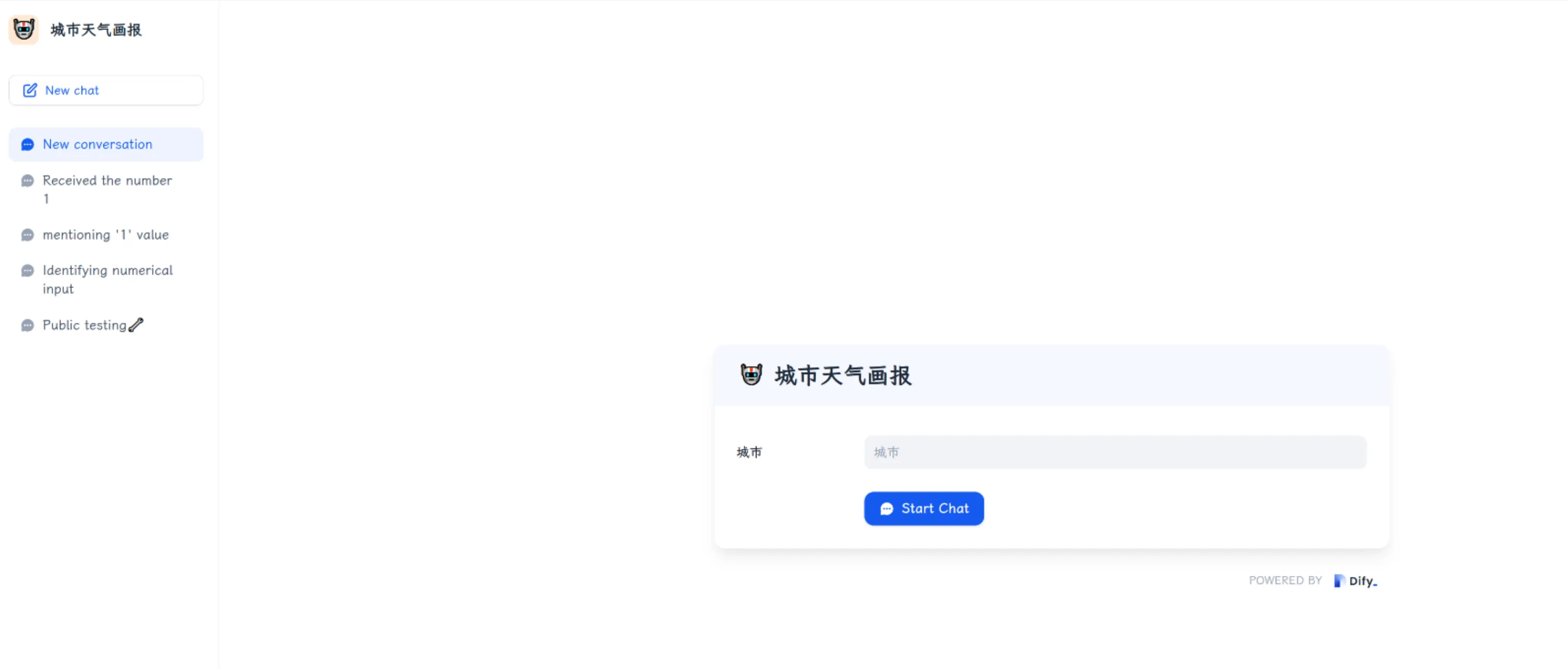
界面:

图片

生成效果:

广州今日状态

测试 DEMO

仅展示效果,为了让更多人体验到效果,请勿滥用。

链接:https://dify.skybyte.me/chat/eg0ZPHqgCyeWF1Mb

iframe 插入不太正常,先不放了。

收藏一个上古软件,在 Linux 终端上使用行编辑器 ed

这个看似简单的编辑器为用户提供了许多易于学习和使用的命令。 这款产生自资源极其有限时期的产物,似乎还很有助于理解 vi/vim 和 emacs 的一些设计。

GNU ed 命令是一个行编辑器。它被认为是标准的 Unix 文本编辑器,因为它是首个出现在 Unix 的文本编辑器,并且它曾经无处不在,你在任何一个 POSIX 系统中都能找到它(通常来说,你现在也可以)。在某种程度上,你可以很容易看出来它是第一个文本编辑器,因为它在许多方面的功能都十分基础。和其他大多数的文本编辑器不同,它不会打开一个属于自己的窗口或显示区域,事实上,在默认情况下,它甚至不会提示用户输入文字。从另一个方面来说,它在交互功能上的缺失也可以成为一个优点。它是一个多功能的编辑器,你可以用简短的命令控制它,无论是在交互式的命令行中,还是在编写的 shell 脚本里。

安装 ed

如果你正在使用 Linux 或者 BSD 的话,你很可能已经默认安装了 ed(在 Linux 上是 GNU 版 ed,而在 BSD 上是 BSD 版 ed)。但是,一些极简的环境可能没有包括 ed,这也没关系,你的发行版的软件仓库中很可能有 ed 可供下载。macOS 默认安装了 BSD 版 ed。

# archlinux
$ sudo pacman -S ed

启动 ed

当你启动 ed 的时候,你的终端提示符不见了,看起来好像是 ed 停止运行了。其实它没有,它只是在等待你输入指令而已。

$ ed

为使 ed 显示更详细的信息,你可以输入命令 p 让它返回一个提示符:

$ ed
p
?

这个问号(?)是默认的 ed 提示符。

缓冲区

当 ed 激活时,你其实是在和一个叫 缓冲区buffer 的东西打交道。缓冲区是内存中的一块区域。你并不会直接编辑文件,而是在编辑它对应的缓冲区。当你退出 ed 却没有把修改保存到磁盘的文件上时,所有的修改都会丢失,因为它们只在缓冲区里存在。(这对于一个已经习惯了初始的 草图缓冲区scratch buffer 的资深 Emacs 用户可能很耳熟。)

使用 ed 输入文本

启动 ed 后,你处于命令模式。这意味着你可以向编辑器发送指令,比如让它显示一个提示符,而不是空白区域。你可以使用 a 命令开始附加文本到当前的缓冲区,使用一个实心的点 . 来终止输入。比如,下面的这个例子往缓冲区里附加了两行文字(“hello world” 和 “hello ed”):

?
a
hello world
hello ed
.

使用点 . 终止输入后,你将回到命令模式。

查看缓冲区

怎样查看当前缓冲区里都有什么呢?你可以输入想要查看的行号,也可以使用 ,p 命令来显示所有的行:

?
1
hello world
2
hello ed
,p
hello world
hello ed

写入文件

如果你现在对文本很满意,你可以使用 w 命令把缓冲区写入到文件中,后面跟上目标文件名:

?
w example.txt
19

写操作后显示的那个数字代表着写入到文件中的字符数。

读取文件

除了使用 ed 来读取文本,你也可以使用 r 命令把一个已经存在的文件加载到到缓冲区里:

?
r myfile.txt

另外,你也可以在启动 ed 时,在它后面加上你想要加载到缓冲区里的文件名:

$ ed myfile.txt

编辑缓冲区

鉴于 ed 是一个文本编辑器,你当然可以使用一种特殊的语法来编辑缓冲区里的文本。使用 sed 或 vim 的用户或许会觉得这个语法很熟悉。假设现在缓冲区里已经加载了一个文件:

$ ed myfile.txt
,p
This is an example document.
There is some text, but not much.
There is some errors, but not much.

如果你要把第一句话中的 document 修改为 file,你可以先选择目标行(1),然后使用 s 命令调用搜索函数,后面跟着搜索文本和替换文本:

?
1
This is an example document.
s/document/file/
1
This is an example file.

如果你要编辑其他行,步骤也是一样的,只需提供一个不同的行号即可:

?
3
There is some errors, but not much.
s/is/are/
s/much/many/

你可以使用 ,p 命令来看到你对缓冲区的历史编辑记录:

This is an example file.
There is some text, but not much.
There are some errors, but not many.

当然,这些修改只存在于缓冲区里。你如果在 ed 编辑器外查看这个文件,你只会看到原始的文本:

$ cat myfile.txt
This is an example document.
There is some text, but not much.
There is some errors, but not much.

如果你要把这些修改保存回文件中,使用 w 命令即可:

w myfile.txt
258

清空缓冲区

如果想要得到一个新的缓冲区,以此来打开一个新的文件,或者把一个新的文件加载到不同的环境中,你可以使用 c 命令。使用这个清空缓冲区后,什么也不会输出,因为缓冲已经是空的了:

c
,p

退出

如果要退出当前的 ed 会话,你可以使用 q 命令。它并不会给你一个保存缓冲区的机会,所以你要确保自己在这之前执行了保存操作。

尝试一下 ed 吧

ed 还可以做到很多事情,学习 ed 可以让你知道它和部分的 vim 是如何工作的。我并没有尝试使用 ed 来写这篇文章,老实说,我也不认为它是通常意义上的最佳文本编辑器。但是,ed 仍然是一个出色的编辑器。通过阅读它的文档,你可以很轻松地学会它。在 GNU 系统上,你可以使用 info ed 来查看它的操作手册。

References

Buildah 简明教程:让镜像构建更轻量,告别 Docker 依赖

来源:Buildah 简明教程:让镜像构建更轻量,告别 Docker 依赖

Buildah 是一个专注于构建 OCI 镜像的工具,Buildah CLI 工具使用底层 OCI 技术实现(例如 containers/image1 和 containers/storage2)。

OCI 三剑客包括:

  • 专注于镜像构建的 Buildah
  • 专注于镜像和容器管理的 Podman
  • 专注于镜像操作和管理(尤其是涉及远程仓库的操作)的 Skopeo

这三者一起形成了一个 Dockerless 的容器生态,支持构建、管理、推送和操作镜像和容器,且不依赖 Docker 守护进程。

注意:三者之间功能是有一定重复的,特别是 Buildah 和 Podman,不过各自专注点不同,建议合理搭配使用。

1. 什么是 Buildah?

Buildah 是一个专注于构建 OCI 镜像的工具,Buildah CLI 工具使用底层 OCI 技术实现(例如 containers/image3 和 containers/storage4)。

官方描述原文:

A tool that facilitates building OCI images.the Buildah command line tool (CLI) and the underlying OCI based technologies (e.g. containers/image5 and containers/storage6)

Buildah CLI 工具则基于这些项目实现了构建、移动、管理镜像的功能:

  • containers/image project provides mechanisms to copy (push, pull), inspect, and sign container images
  • containers/storage project provides mechanisms for storing filesystem layers, container images, and containers

那么问题来了:构建镜像已经有 Docker 了为什么还需要 Buildah?

Buildah 是无守护进程以及可以 rootless 运行的,相比于 docker 更加轻量级。

如果使用 Buildah 来代替 Docker 镜像构建能力,由于可以无守护进程以及可以 rootless 运行,因此即使在容器中使用也非常方便,对于 Devops 来说是一个很好的选择。

即:相较于现有的构建工具, Buildah 更轻量级,做到了 Dockerless 和 Rootless。

2. 安装 Buildah

官方文档:buildah#install.md7

Buildah 为各大发行版都提供了对应的 Package,可以方便的通过 yum、apt-get、dnf 等等工具安装,当然也可以通过源码编译安装。

推荐使用发行版自带的包管理工具安装:

# CentOS  
sudo yum -y install buildah  

# Ubuntu 20.10 and newer  
sudo apt-get -y update  
sudo apt-get -y install buildah  

# Fedora  
sudo dnf -y install buildah

Demo 用的 Ubuntu22.04

sudo apt-get -y update  
sudo apt-get -y install buildah

查看 Buildah 版本

ps:系统版本比较低,所以安装的 buildah 也比较旧

root@builder-ubuntu:~# buildah version  
Version:         1.23.1  
Go Version:      go1.17  
Image Spec:      1.0.1  
Runtime Spec:    1.0.2-dev  
CNI Spec:        0.4.0  
libcni Version:  
image Version:   5.16.0  
Git Commit:  
Built:           Thu Jan  1 08:00:00 1970  
OS/Arch:         linux/amd64  
BuildPlatform:   linux/amd64

3. 基础功能

使用命令式构建镜像

Buildah 相对于 Dockerfile 提供了强大的命令式构建方式,将 Dockerfile 指令变成一条一条的命令,为我们构建镜像提供了新的选择:

# 拉取镜像,类似 Dockerfile 中的 FROM  
container=$(buildah from nginx)  
# 类似 Dockerfile 中的 RUN  
buildah run $container -- bash -c 'echo "hello world" > /usr/share/nginx/html/index.html'  
# 提交保存镜像  
buildah commit $container nginx-hello

输出如下:

[root@builder ~]# container=$(buildah from nginx)  
[root@builder ~]# buildah run $container -- bash -c 'echo "hello world" > /usr/share/nginx/html/index.html'  
[root@builder ~]# buildah commit $container nginx-hello  
Getting image source signatures  
Copying blob c0f1022b22a9 skipped: already exists  
Copying blob fc00b055de35 skipped: already exists  
Copying blob 2c3a053d7b67 skipped: already exists  
Copying blob b060cc3bd13c skipped: already exists  
Copying blob 8aa4787aa17a skipped: already exists  
Copying blob c28e0f7d0cc5 skipped: already exists  
Copying blob d32d820bcf1c skipped: already exists  
Copying blob c6a7a8084917 done   |  
Copying config 19de2f1f4a done   |  
Writing manifest to image destination  
19de2f1f4afc6e0ff9da11e9dfb988619f4bcd1d388ea4c18413ab574487a0d4

查看到刚才构建的镜像

[root@builder ~]# buildah images  
REPOSITORY                          TAG       IMAGE ID       CREATED          SIZE  
localhost/nginx-hello               latest    19de2f1f4afc   22 seconds ago   196 MB

通过 Dockerfile 构建镜像

当然,Buildah 也支持通过 Dockerfile 构建镜像,这个应该是比较常见的用法。

准备一个 Dockerfile

FROM nginx  
RUN echo "Hello World" > /usr/share/nginx/html/index.html  
EXPOSE 80

使用 buildah 构建镜像

buildah build -t nginx-hello2 .

输出如下

[root@builder ~]# buildah build -t nginx-hello2 .  
STEP 1/3: FROM nginx  
STEP 2/3: RUN echo "Hello World" > /usr/share/nginx/html/index.html  
STEP 3/3: EXPOSE 80  
COMMIT nginx-hello2  
Getting image source signatures  
Copying blob c0f1022b22a9 skipped: already exists  
Copying blob fc00b055de35 skipped: already exists  
Copying blob 2c3a053d7b67 skipped: already exists  
Copying blob b060cc3bd13c skipped: already exists  
Copying blob 8aa4787aa17a skipped: already exists  
Copying blob c28e0f7d0cc5 skipped: already exists  
Copying blob d32d820bcf1c skipped: already exists  
Copying blob eec64f0b2723 done   |  
Copying config 1b63bdb270 done   |  
Writing manifest to image destination  
--> 1b63bdb270c1  
Successfully tagged localhost/nginx-hello2:latest  
1b63bdb270c1066520a5ae37dcea3d5c3b9c5e9af581e76bf1287f9f79f77f03

用法和 Docker build 基本一致,迁移的话也没有太多学习成本。

4. 配置文件

同为 OCI 三剑客,Podman 、Buildah 配置文件也是通用的。

您可以在以下目录中找到默认的 Podman 、Buildah 的配置文件:

  • 全局配置文件:/etc/containers/
  • 用户配置文件:~/.config/containers/

ps:会优先使用用户配置文件,若没有则使用全局配置文件。 即:不同用户都可以单独指定自己的配置文件

在/etc/containers 目录下,包括多种配置文件:

  • storage.conf:存储相关配置
  • registries.conf:镜像仓库相关配置
  • policy.json:容器签名验证相关配置
  • auth.json:镜像仓库的认证信息,执行 login 命令后会将 token 存到该文件
  • …

各个文件的具体配置可以参考:Podman&Buildah 配置文件说明8

作为使用者,主要关系 registries.conf 配置,因此重点分析。

vi /etc/containers/registries.conf

完整内容

/etc/containers/registries.conf 完整内容如下:

unqualified-search-registries = ["registry.access.redhat.com", "registry.redhat.io", "docker.io"]  

# 配置为 Docker.io 仓库的镜像源  
[[registry]]  
prefix = "docker.io"  
location = "registry-1.docker.io"  

# 为 Docker.io 配置镜像源  
[[registry.mirror]]  
location = "mirror.gcr.io"  

[[registry.mirror]]  
location = "mirror2.gcr.io"  

# 配置为私有仓库 10.10.10.49:5000 的镜像源  
[[registry]]  
prefix = "10.10.10.49:5000"  
location = "10.10.10.49:5000"  
insecure = true  

# 配置私有仓库镜像源  
[[registry.mirror]]  
location = "mirror.gcr.io"  

short-name-mode = "permissive

大致可以分为以下几部分:

  • 默认镜像仓库
  • 为镜像仓库配置 Insecure、Mirror 等
  • shortName 处理模式

不同仓库配置使用 [[registry]] 块进行区分。

注意:下面这样的配置是 V1 版本,已经废弃了,虽然还可以使用,但是不推荐。

[registries.search]
registries = ['registry1.com', 'registry2.com']

[registries.insecure]
registries = ['registry3.com']

[registries.block]
registries = ['registry.untrusted.com', 'registry.unsafe.com']

参数解释

官方文档:containers-registries.conf.5.md9

unqualified-search-registries

unqualified-search-registries 是一个配置项,用来指定当拉取一个 没有指定完整路径(即不包含域名和路径) 的镜像时,应该尝试哪些仓库(注册表)。这通常适用于 “没有指定镜像仓库” 的情况。

unqualified-search-registries = ["registry.access.redhat.com", "registry.redhat.io", "docker.io"]

一句话描述:在拉取没有指定完整路径(即不包含域名和路径) 的镜像时,应该尝试哪些仓库(注册表)。

short-name-mode

short-name-mode 选项定义了如何处理不带仓库路径的镜像名(例如,golang:1.20)。有三种模式:

  • disabled:不允许使用短名称,必须指定完整的仓库路径。

  • permissive(默认):允许使用短名称,并尝试按顺序从配置的注册表列表中查找镜像。

  • full:只有在仓库名称为完整名称时才能拉取镜像。

默认值就可以了,不用改。

short-name-mode = "permissive

prefix

Registry 块下的 prefix 用于匹配在拉取镜像时会用那个 Registry 块里的配置,只会使用最长匹配的 Registry 块。

假设有下面这样的配置,包含两个 Registry 块

[[registry]]
prefix = "docker.io"

[[registry]]
prefix = "docker.io.example.com"

当我们拉取镜像docker.io.example.com/library/busybox:latest 时,根据镜像完整命令中解析得到一个域名,然后和我们的配置文件中的 prefix 进行匹配,最终会匹配到第二个 Registry 块,这样就会使用该 Registry 块中的配置。

一句话描述:*一般填写 Registry 地址即可,但是需要按照 `.example.com` 格式,或者就是指定 location**。

location

Registry 块中的 location 用于指定最终拉取镜像时访问的地址。

我们在拉取镜像时指定的是 docker.io/library/busybox:1.36,但是最终会去 registry-1.docker.io 这个地址拉取。

对于 docker.io 来说,就需要以下配置文件:

[[registry]]
prefix = "docker.io"
location = "registry-1.docker.io"

还有就是 prefix 不是*.example.com 格式时,也必须指定 location,内容和 prefix 一致就行。

一句话描述:*用于指定真正拉取镜像的地址,例如 registry-1.docker.io,或者当 prefix 不是`.example.com` 格式时,也必须指定 location,内容和 prefix 一致就行。**

insecure

registry 块下的 Insecure 参数比较常见,就是配置使用 http 访问该仓库,一般自建私有仓库会用到该配置。

# 配置为私有仓库 10.10.10.49:5000 的镜像源
[[registry]]
prefix = "10.10.10.49:5000"
location = "10.10.10.49:5000"
insecure = true

blocked

官方解释是这样的: If true, pulling images with matching names is forbidden.

默认是 false,配置为 true 之后就不能冲对应 Prefix 指定的镜像仓库中拉取镜像了。

# 配置为私有仓库 10.10.10.49:5000 的镜像源
[[registry]]
prefix = "10.10.10.49:5000"
blocked = false

一句话描述:用于关闭某些禁止使用的仓库。

mirror

对于部分无法拉取或拉取慢的仓库,可以配置 mirror 仓库。

# 配置 Docker 的镜像源
[[registry]]
prefix = "docker.io"
location = "registry-1.docker.io"

[[registry.mirror]]
location = "docker.m.daocloud.io"

registry.mirror 块放在那个 Registry 块下面就是为哪个仓库配置的 Mirror。

参考配置文件

以下就是一个比较常用的配置文件 Demo,包括了 location、mirror、insecure 等配置,增加其他镜像仓库时可以做参考。

unqualified-search-registries = ["docker.io"]
short-name-mode = "permissive"

# 配置 Docker 的镜像源
[[registry]]
prefix = "docker.io"
location = "registry-1.docker.io"

[[registry.mirror]]
location = "docker.m.daocloud.io"

# 配置为私有仓库 "172.20.150.222" 的镜像源
[[registry]]
prefix = "172.20.150.222"
location = "172.20.150.222"
insecure = true

5. 进阶用法

这里主要分享一些进阶的用法,包括:

  • 多阶段构建
  • 多架构镜像构建
  • CI 环境中使用 Buildah

多阶段构建

多阶段构建是一种优化镜像大小的常用手段,通过将程序编译环境和运行环境分开来降低最终镜像大小。 用一个简单的 Go 程序演示一下多阶段构建。

main.go

使用 net/http 启动一个 http 服务。

// main.go
package main

import (
        "fmt"
        "log"
        "net/http"
)

func handler(w http.ResponseWriter, r *http.Request) {
        fmt.Fprintf(w, "Hello, World!")
}

func main() {
        http.HandleFunc("/", handler)
        log.Fatal(http.ListenAndServe(":8080", nil))
}

Dockerfile

多阶段构建核心其实是 Dockerfile,可以看到当前 Dockerfile 有两个 FROM 语句,分别对应到编译阶段和运行阶段。

  • 编译阶段:使用 golang:1.20-alpine 作为基础镜像,保证 Go 程序可以正常编译

  • 运行阶段:因为 Go 程序编译后二进制可以直接运行,不在依赖 Go 环境了,因此直接使用 alpine 作为基础镜像,减少最终镜像的体积

# Stage 1: Build stage (builder)
FROM golang:1.20-alpine as builder

# Set the Current Working Directory inside the container
WORKDIR /app

# Copy the source code into the container
COPY . .

# Build the Go binary
RUN CGO_ENABLED=0 go build main.go

# Stage 2: Runtime stage
FROM alpine:latest

# Install the necessary libraries to run the binary (if any)
RUN apk --no-cache add ca-certificates

# Set the Current Working Directory inside the container
WORKDIR /root/

# Copy the compiled binary from the builder stage
COPY --from=builder /app/main .

# Expose port 8080
EXPOSE 8080

# Run the Go application
CMD ["./main"]

构建

buildah build -t server:v0.0.1 .

输出如下:

[root@builder ~]# buildah build -t server:v0.0.1 .
[1/2] STEP 1/4: FROM golang:1.20-alpine AS builder
[1/2] STEP 2/4: WORKDIR /app
[1/2] STEP 3/4: COPY . .
[1/2] STEP 4/4: RUN CGO_ENABLED=0 go build main.go
[2/2] STEP 1/6: FROM alpine:latest
Resolved "alpine" as an alias (/etc/containers/registries.conf.d/000-shortnames.conf)
Trying to pull docker.io/library/alpine:latest...
Getting image source signatures
Copying blob 38a8310d387e done   |
Copying config 4048db5d36 done   |
Writing manifest to image destination
[2/2] STEP 2/6: RUN apk --no-cache add ca-certificates
fetch https://dl-cdn.alpinelinux.org/alpine/v3.21/main/x86_64/APKINDEX.tar.gz
fetch https://dl-cdn.alpinelinux.org/alpine/v3.21/community/x86_64/APKINDEX.tar.gz
(1/1) Installing ca-certificates (20241010-r0)
Executing busybox-1.37.0-r8.trigger
Executing ca-certificates-20241010-r0.trigger
OK: 7 MiB in 16 packages
[2/2] STEP 3/6: WORKDIR /root/
[2/2] STEP 4/6: COPY --from=builder /app/main .
[2/2] STEP 5/6: EXPOSE 8080
[2/2] STEP 6/6: CMD ["./main"]
[2/2] COMMIT server:v0.0.1
Getting image source signatures
Copying blob 3e01818d79cd skipped: already exists
Copying blob 529cb79624ea done   |
Copying config 8d0a6344f5 done   |
Writing manifest to image destination
--> 8d0a6344f55c
Successfully tagged localhost/server:v0.0.1
8d0a6344f55c0611c94b23f2571adb0ba1ce98ee1d5009c79fd656fd42247c1b

多架构镜像构建

很多应用程序和服务都需要在不同架构的机器上运行,如 amd64 和 arm64,但我们不可能为每一个架构都准备一台专门的机器。

之前主要用的是 Docker Buildx,不过 Buildah 也是支持多架构构建的。

ps:当然了,都要借助 qemu

安装 qemu-user-static

buildah 使用 qemu 来模拟不同架构。

首先需要确保你的系统上安装了 qemu。

ps:经过测试,如果你的 Dockerfile 中没有 RUN 命令去执行某些操作其实不需要 qemu 也能正常构建多架构镜像。

直接包管理工具安装:

# Ubuntu
sudo apt-get install qemu-user-static
# Fedora
sudo dnf install qemu-user-static

构建并推送多架构镜像

和 Docker buildx 一样,Buildah 也通过 --platform 参数来指定要构建的架构。

不过 Buildah 没有 --push 参数,不能在构建完成后自动生成 manifest 并推送,因此需要手动创建一个 manifest 并将构建的镜像和 manifest 绑定并手段推送到最终镜像仓库。

整体流程大致分为三步:

  • 1)创建 Manifest
  • 这里创建的 manifest 其实是一个镜像,会出现在 buildah images 列表里
  • 名称推荐使用完整镜像名,例如:172.20.150.222/lixd/nginx-hello:v0.0.2,不过用别的也不影响
  • 2)构建多架构镜像
  • 注意要使用 –manifest 代替 –tag 参数,让镜像和 manifest 绑定
  • 3)推送 Manifest 和 Image 到镜像仓库
  • Push 时需要指定 Manifest 名称,同时还要指定完整的 Registry 路径
  • 如果 manifest 用的就是完整镜像名,这里二者就是一样的

Command 如下:

PUSH_WAY=172.20.150.222/lixd/nginx-hello:v0.0.2

# 创建 manifest
buildah manifest create ${PUSH_WAY}

# 构建
buildah build --manifest ${PUSH_WAY} --platform linux/amd64,linux/arm64 .

# 推送
buildah manifest push ${PUSH_WAY} --all "docker://${PUSH_WAY}"

定义了一个简单的脚本来实现构建多架构镜像,build.sh 完整内容如下:

# Set the required variables
export REGISTRY="172.20.150.222"
export REPOSITORY="lixd"
export IMAGE_NAME="server"
export IMAGE_TAG="v0.0.1"
export BUILD_PATH="."

# Platforms to build for
export PLATFORMS="linux/amd64,linux/arm64"

PUSH_WAY="${REGISTRY}/${REPOSITORY}/${IMAGE_NAME}:${IMAGE_TAG}"
MANIFEST_NAME=$PUSH_WAY
echo $PUSH_WAY

# Create a multi-architecture manifest
### Infact,this command can be ignore,when build will creates manifest list if it does not exist
buildah manifest create ${MANIFEST_NAME}

# Build the container for all platform
### Note: When more than one platform,use manifest to instead of tag flag.
buildah build \
--manifest ${MANIFEST_NAME} \
--platform ${PLATFORMS} \
${BUILD_PATH}

# Push the full manifest, with both CPU Architectures
### If Push To Docker Hub or Gitlab Registry,need add flag:--format v2s2,Default Is oci
buildah manifest push --all \
  ${MANIFEST_NAME} \
  "docker://${PUSH_WAY}"

就以上一步的 Go Demo 编译生成一个多架构镜像:

bash build.sh

输出如下:

root@builder-ubuntu:~/multistage# bash build.sh
172.20.150.222/lixd/server:v0.0.1
e6ba6ec459a1fd7303c19242ab0d85c7c23af8cb156ce348928e2a4135327f15
# amd64
[linux/amd64] STEP 1/4: FROM golang:1.20-alpine AS builder
[linux/amd64] STEP 2/4: WORKDIR /app
[linux/amd64] STEP 3/4: COPY . .
[linux/amd64] STEP 4/4: RUN CGO_ENABLED=0 go build main.go
[linux/amd64] STEP 1/6: FROM alpine:latest
[linux/amd64] STEP 2/6: RUN apk --no-cache add ca-certificates
[linux/amd64] STEP 3/6: WORKDIR /root/
[linux/amd64] STEP 4/6: COPY --from=builder /app/main .
[linux/amd64] STEP 5/6: EXPOSE 8080
[linux/amd64] STEP 6/6: CMD ["./main"]
# arm64
[linux/arm64] [1/2] STEP 1/4: FROM golang:1.20-alpine AS builder
[linux/arm64] [1/2] STEP 2/4: WORKDIR /app
[linux/arm64] [1/2] STEP 3/4: COPY . .
[linux/arm64] [1/2] STEP 4/4: RUN CGO_ENABLED=0 go build main.go
[linux/amd64] [2/2] STEP 1/6: FROM alpine:latest
[linux/arm64] [2/2] STEP 3/6: WORKDIR /root/
[linux/arm64] [2/2] STEP 4/6: COPY --from=builder /app/main .
[linux/arm64] [2/2] STEP 5/6: EXPOSE 8080
[linux/arm64] [2/2] STEP 6/6: CMD ["./main"]
[linux/arm64] [2/2] COMMIT
# push
Getting image source signatures
Copying blob 977340364f39 skipped: already exists
Copying blob d8b4b7adc1e8 done
Copying config d97c60d03e done
Writing manifest to image destination
Storing signatures
--> d97c60d03e8
d97c60d03e822bb29c02c6b5c2c51b0f47871e52bc8c210c1e6324863797ce64
Getting image list signatures
Copying 4 of 4 images in list
Writing manifest list to image destination
...

CI 系统中使用

这里以 Github Action 为例,演示如何使用 Buildah 构建多架构镜像。

源码:lixd/github-action-lab[11]

Dockerfile 和 main.go 和之前一样,就不贴了,感兴趣的同学可以调整 Github 查看~

Workflow.yaml

Workflow 就是最终执行的 Pipeline,分为几个步骤:

  • 1)启动运行环境,这里是 ubuntu-20.04
  • 2)Clone 代码
  • 3)安装 QEMU
  • 4)Buildah 构建多架构镜像
  • 5)推送到镜像仓库
name: Build and Push Multi-Arch Image

on:
  push:

env:
  IMAGE_NAME: test-multi-arch
  IMAGE_TAG: latest
  IMAGE_REGISTRY: docker.io
  IMAGE_NAMESPACE: lixd96

jobs:
  build:
    name: Build and Push Multi-Architecture Image
    runs-on: ubuntu-20.04

    steps:
      # Checkout the repository
      - name: Checkout repository
        uses: actions/checkout@v2

      # Set up QEMU for cross-platform builds
      - name: Set up QEMU for multi-arch support
        uses: docker/setup-qemu-action@v1

      # Build the Docker image using Buildah
      - name: Build multi-architecture image
        id: build-image
        uses: redhat-actions/buildah-build@v2
        with:
          image: ${{ env.IMAGE_NAME }}
          tags: ${{ env.IMAGE_TAG }}
          archs: amd64,ppc64le,s390x,arm64  # Specify the architectures for multi-arch support
          dockerfiles: |
            ./Dockerfile

      # Push the built image to the specified container registry
      - name: Push image to registry
        id: push-to-registry
        uses: redhat-actions/push-to-registry@v2
        with:
          image: ${{ steps.build-image.outputs.image }}
          tags: ${{ steps.build-image.outputs.tags }}
          registry: ${{ env.IMAGE_REGISTRY }}/${{ env.IMAGE_NAMESPACE }}
          username: ${{ secrets.REGISTRY_USERNAME }}  # Secure registry username
          password: ${{ secrets.REGISTRY_PASSWORD }}  # Secure registry password

      # Print the image URL after the image has been pushed
      - name: Print pushed image URL
        run: echo "Image pushed to ${{ steps.push-to-registry.outputs.registry-paths }}"

验证

提交代码后,Workflow 会自动运行,到 Dockerhub 查看镜像是否成功推送

可以看到,指定的 4 个架构都成功构建并推送过来了。

6.小结

Buildah 提供了一种灵活且高效的镜像构建方式,无需 Docker 依赖,且支持 rootless 安全模式,适用于各种 DevOps 和 CI/CD 环境。它支持命令式和 Dockerfile 构建方式,还能进行多阶段构建和多架构镜像构建。

References

参考资料